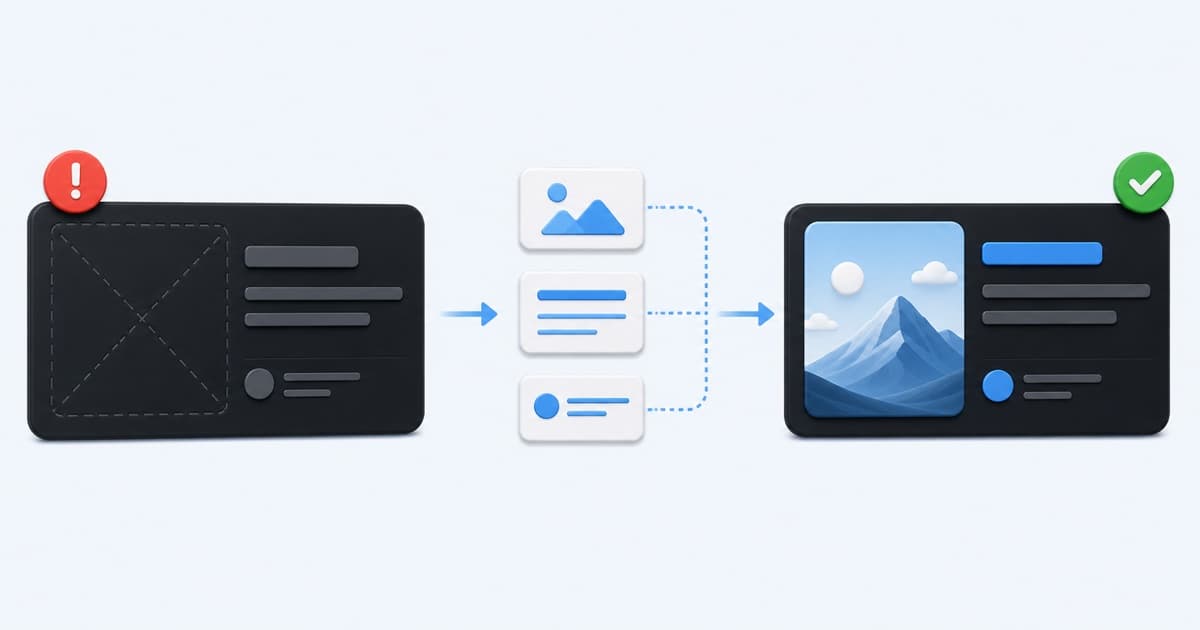
Twitter Card Preview Not Showing? 9 Fixes for X Links
Fix a missing Twitter or X link preview by checking card tags, Open Graph fallbacks, image access, redirects, robots rules, and cached metadata.
A missing X preview is usually caused by the live page metadata, the share image response, or a cached scrape—not the post composer itself.
Start with the Twitter Card Validator. It reads the public page, shows the representative X card, identifies missing fields, and lets you copy a fix or a complete prompt for an AI coding agent.
1. Add a Twitter Card Type
X needs to know which card layout to use. For most articles, landing pages, and product pages, declare a large image card:
<meta name="twitter:card" content="summary_large_image" />
Use summary only when a small square thumbnail is intentional. A missing twitter:card is one of the clearest reasons a Twitter Card validator will mark a page as incomplete.
2. Provide Complete Twitter Tags or Reliable OG Fallbacks
X can use Open Graph values as fallbacks, but explicit Twitter values make the intended card unambiguous:
<meta name="twitter:title" content="A specific title for this page" />
<meta name="twitter:description" content="A concise description that earns the click." />
<meta name="twitter:image" content="https://example.com/social-card.jpg" />
If you omit the Twitter title, description, or image, verify that og:title, og:description, and og:image are present and correct. Do not rely on the visible H1 or the first image in the article; crawlers may choose differently.
3. Make the Image Publicly Fetchable
Open the exact twitter:image or og:image URL in a private browser window. The request should:
- Use an absolute HTTPS URL
- Return a successful response
- Return an image content type such as
image/jpeg,image/png, orimage/webp - Work without cookies, authentication, or a signed-in session
- Avoid bot protection that challenges social crawlers
If the image URL expires, requires a hotlink token, or returns HTML instead of an image, X may render a text-only link.
4. Use a Compatible Image
For a large card, start with a 1200×630 image. Keep important text and faces away from the outer edges because feed layouts can crop. Compress the file without making it blurry, and use a stable URL that will not disappear after a deployment.
See the Open Graph image size guide for ratios, safe areas, and platform tradeoffs.
5. Remove Redirect Surprises
A short link may pass through HTTP-to-HTTPS, non-www-to-www, locale, consent, or campaign redirects before reaching the page. Each hop gives crawlers another response to cache or reject.
Share the final canonical URL where possible. LinkGlimpse records the redirect trace so you can see every public hop and its status code.
6. Check Robots and Security Rules
Confirm that the page does not return a noindex directive by accident and that your CDN, WAF, or hosting provider is not blocking crawler traffic. Also check that the image is not protected by a rule that permits normal browsers but rejects unfamiliar user agents.
Do not expose private pages merely to obtain a social preview. Create a public campaign or summary page instead.
7. Check the Rendered HTML
Social crawlers read the HTML response. If tags appear only after client-side JavaScript runs, they may not be available during the scrape.
In frameworks such as Next.js, generate metadata on the server with the framework metadata API. In a traditional site, render tags directly inside <head>. View the page source—not only the browser inspector—to confirm the tags are in the initial document.
8. Eliminate Duplicate Tags
CMS plugins, themes, tag managers, and custom layouts can each output their own metadata. When two twitter:image or og:title tags disagree, the platform may choose an unexpected value.
Keep one authoritative set per page. If your CMS already provides social metadata, update that source rather than appending another plugin.
9. Separate Live Metadata From X Cache
First verify that the live page and image are correct. Then try sharing the final canonical URL again. X controls its own scrape timing, so a correct live response does not guarantee an immediate cache refresh.
LinkGlimpse cannot clear X's cache, and neither can an HTML change by itself. The useful workflow is:
- Run the URL through the validator.
- Fix every failed live check.
- Deploy the change.
- Re-run the same URL and confirm the extracted tags changed.
- Share the final URL again and allow for platform cache behavior.
Twitter Card Repair Checklist
twitter:cardis present- A title, description, and image are supplied explicitly or through OG fallbacks
- The page and image return successful public responses
- The share image uses HTTPS and a stable absolute URL
- The initial HTML contains one authoritative set of tags
- Redirects lead to the expected canonical URL
- The live metadata is correct before treating the issue as cache-related
Run the Twitter Card Validator after deployment. If several code changes are required, use Copy for AI agent to hand the complete diagnostic context to your coding assistant.
Related: Open Graph image not showing and complete Open Graph tag templates.
Written by LinkGlimpse Team
Published on